> ## Documentation Index
> Fetch the complete documentation index at: https://docs.extruct.ai/llms.txt
> Use this file to discover all available pages before exploring further.
# Extruct MCP
> Run Extruct search and tables inside Claude or your editor. Sign in once with your Extruct account.
Connect Extruct to Claude or your coding tool so company lookup, search, lookalikes, Deep Search, and tables show up in chat. Use your Extruct login. The tool will prompt you when it needs access.
**Connector URL** (copy into your app):
```
https://api.extruct.ai/mcp
```
## Installation
Pick your app. The first time you connect, your browser may open for sign-in.
1. **Customize** → **Connectors** at [claude.ai/customize/connectors](https://claude.ai/customize/connectors).
2. **+** → **Add custom connector**.
3. **Name:** `Extruct AI`. **MCP URL:** `https://api.extruct.ai/mcp`. **Add**.
4. Select **Extruct AI** → **Connect** and sign in.
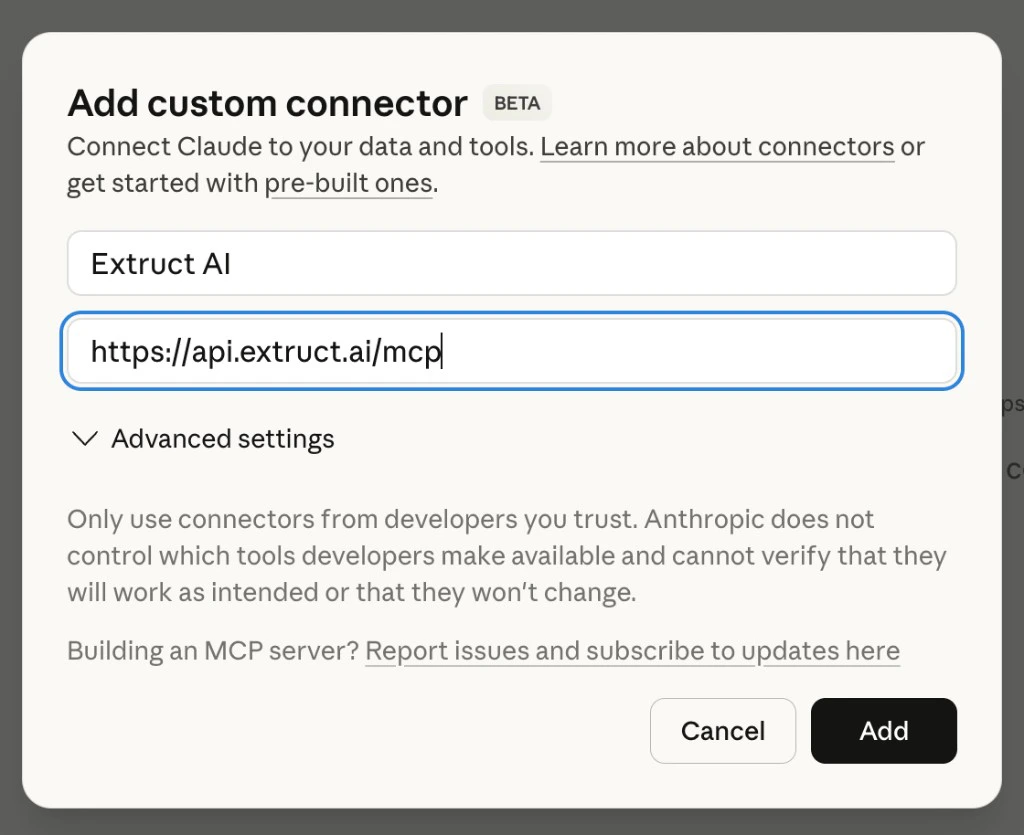 1. **Customize** → **Connectors** (in the Claude app).
2. **+** → **Add custom connector**.
3. **Name:** `Extruct AI`. **MCP URL:** `https://api.extruct.ai/mcp`. **Add**.
4. Select **Extruct AI** → **Connect** and sign in.
```bash theme={null}
claude mcp add --transport http extruct https://api.extruct.ai/mcp
```
Sign in when the terminal or browser asks.
[](https://cursor.com/en-US/install-mcp?name=extruct\&config=eyJ1cmwiOiJodHRwczovL2FwaS5leHRydWN0LmFpL21jcCJ9)
Or edit `~/.cursor/mcp.json`:
```json theme={null}
{
"mcpServers": {
"extruct": {
"url": "https://api.extruct.ai/mcp"
}
}
}
```
[](https://vscode.dev/redirect/mcp/install?name=extruct\&config=%7B%22type%22%3A%22http%22%2C%22url%22%3A%22https%3A%2F%2Fapi.extruct.ai%2Fmcp%22%7D)
Or add `.vscode/mcp.json` to your project:
```json theme={null}
{
"servers": {
"extruct": {
"type": "http",
"url": "https://api.extruct.ai/mcp"
}
}
}
```
```bash theme={null}
codex mcp add extruct --url https://api.extruct.ai/mcp
codex mcp login extruct
```
Or add to `~/.codex/config.toml`:
```toml theme={null}
[mcp_servers.extruct]
url = "https://api.extruct.ai/mcp"
```
Then run `codex mcp login extruct`. [Codex MCP](https://developers.openai.com/codex/mcp)
1. **Settings** → **MCP** (labels vary).
2. Add a server with URL `https://api.extruct.ai/mcp`, or add this to `~/.codex/config.toml`:
```toml theme={null}
[mcp_servers.extruct]
url = "https://api.extruct.ai/mcp"
```
3. Run `codex mcp login extruct` in a terminal.
[Codex MCP](https://developers.openai.com/codex/mcp)
Put `https://api.extruct.ai/mcp` in your app's MCP or connector settings (labels vary). Sign in when asked.
```json theme={null}
{
"mcpServers": {
"extruct": {
"url": "https://api.extruct.ai/mcp"
}
}
}
```
## After you connect
You can run the same company lookup, search, lookalikes, Deep Search, Deep Research, and AI Tables workflows in chat that you use in the Extruct app.
## Try it
Copy any of these into your chat:
* `Who competes with Figma in Europe? Give me 10 with websites. Use Extruct MCP.`
* `Pull up the Extruct company profile for stripe.com. Use Extruct MCP.`
* `Find Series A fintech companies in New York with 20-100 employees. Use Extruct MCP.`
* `Pull up lookalikes to ramp.com and compare their funding stages. Use Extruct MCP.`
* `Build a table of these 15 domains, add a column for employee count and another for recent funding, then run it. Use Extruct MCP.`
* `Find the Head of Sales at each company on my shortlist and get their LinkedIn. Use Extruct MCP.`
* `Search for AI companies selling to logistics. Narrow it to Germany and the Nordics. Use Extruct MCP.`
* `Take the top 20 results from my last search, create a table, and score them on product-market fit for our ICP. Use Extruct MCP.`
* `Run deep research on Shell: buying centers, recent initiatives, and practical sales angles for our outreach. Use Extruct MCP.`
* `Research this person and the team they work with before my call tomorrow: . We sell . Use Extruct MCP.`
**Not working?** Reconnect in Connectors or MCP settings, or restart the app after you save a config file.
**Can't sign in:** Run **Connect** (or your app's login command) again and complete the browser step.
**No Extruct tools:** Quit and reopen the app after you save config.
**Credits or plan limits:** Open the [Extruct app](https://app.extruct.ai/) to check billing and usage.
**Claude:** **Customize** → **Connectors** → **+** → **Add custom connector** ([claude.ai/customize/connectors](https://claude.ai/customize/connectors)). **Extruct AI** → **Connect** (`https://api.extruct.ai/mcp`).
1. **Customize** → **Connectors** (in the Claude app).
2. **+** → **Add custom connector**.
3. **Name:** `Extruct AI`. **MCP URL:** `https://api.extruct.ai/mcp`. **Add**.
4. Select **Extruct AI** → **Connect** and sign in.
```bash theme={null}
claude mcp add --transport http extruct https://api.extruct.ai/mcp
```
Sign in when the terminal or browser asks.
[](https://cursor.com/en-US/install-mcp?name=extruct\&config=eyJ1cmwiOiJodHRwczovL2FwaS5leHRydWN0LmFpL21jcCJ9)
Or edit `~/.cursor/mcp.json`:
```json theme={null}
{
"mcpServers": {
"extruct": {
"url": "https://api.extruct.ai/mcp"
}
}
}
```
[](https://vscode.dev/redirect/mcp/install?name=extruct\&config=%7B%22type%22%3A%22http%22%2C%22url%22%3A%22https%3A%2F%2Fapi.extruct.ai%2Fmcp%22%7D)
Or add `.vscode/mcp.json` to your project:
```json theme={null}
{
"servers": {
"extruct": {
"type": "http",
"url": "https://api.extruct.ai/mcp"
}
}
}
```
```bash theme={null}
codex mcp add extruct --url https://api.extruct.ai/mcp
codex mcp login extruct
```
Or add to `~/.codex/config.toml`:
```toml theme={null}
[mcp_servers.extruct]
url = "https://api.extruct.ai/mcp"
```
Then run `codex mcp login extruct`. [Codex MCP](https://developers.openai.com/codex/mcp)
1. **Settings** → **MCP** (labels vary).
2. Add a server with URL `https://api.extruct.ai/mcp`, or add this to `~/.codex/config.toml`:
```toml theme={null}
[mcp_servers.extruct]
url = "https://api.extruct.ai/mcp"
```
3. Run `codex mcp login extruct` in a terminal.
[Codex MCP](https://developers.openai.com/codex/mcp)
Put `https://api.extruct.ai/mcp` in your app's MCP or connector settings (labels vary). Sign in when asked.
```json theme={null}
{
"mcpServers": {
"extruct": {
"url": "https://api.extruct.ai/mcp"
}
}
}
```
## After you connect
You can run the same company lookup, search, lookalikes, Deep Search, Deep Research, and AI Tables workflows in chat that you use in the Extruct app.
## Try it
Copy any of these into your chat:
* `Who competes with Figma in Europe? Give me 10 with websites. Use Extruct MCP.`
* `Pull up the Extruct company profile for stripe.com. Use Extruct MCP.`
* `Find Series A fintech companies in New York with 20-100 employees. Use Extruct MCP.`
* `Pull up lookalikes to ramp.com and compare their funding stages. Use Extruct MCP.`
* `Build a table of these 15 domains, add a column for employee count and another for recent funding, then run it. Use Extruct MCP.`
* `Find the Head of Sales at each company on my shortlist and get their LinkedIn. Use Extruct MCP.`
* `Search for AI companies selling to logistics. Narrow it to Germany and the Nordics. Use Extruct MCP.`
* `Take the top 20 results from my last search, create a table, and score them on product-market fit for our ICP. Use Extruct MCP.`
* `Run deep research on Shell: buying centers, recent initiatives, and practical sales angles for our outreach. Use Extruct MCP.`
* `Research this person and the team they work with before my call tomorrow: . We sell . Use Extruct MCP.`
**Not working?** Reconnect in Connectors or MCP settings, or restart the app after you save a config file.
**Can't sign in:** Run **Connect** (or your app's login command) again and complete the browser step.
**No Extruct tools:** Quit and reopen the app after you save config.
**Credits or plan limits:** Open the [Extruct app](https://app.extruct.ai/) to check billing and usage.
**Claude:** **Customize** → **Connectors** → **+** → **Add custom connector** ([claude.ai/customize/connectors](https://claude.ai/customize/connectors)). **Extruct AI** → **Connect** (`https://api.extruct.ai/mcp`).