

Installation
Pick your app. The first time you connect, your browser may open for sign-in.- Claude (web)
- Claude (desktop app)
- Claude Code
- Cursor
- VS Code
- Codex (CLI)
- Codex (app)
- Other apps
- Customize → Connectors at claude.ai/customize/connectors.
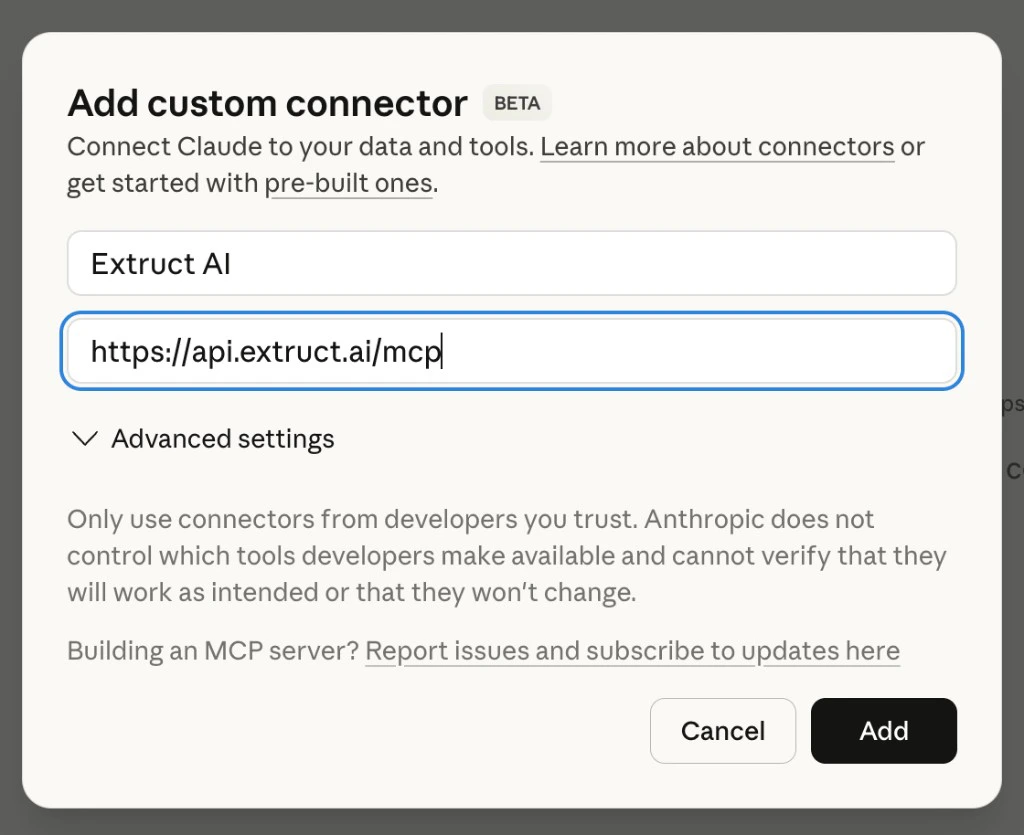
- + → Add custom connector.
-
Name:
Extruct AI. MCP URL:https://api.extruct.ai/mcp. Add. -
Select Extruct AI → Connect and sign in.


After you connect
You can run the same company lookup, search, lookalikes, Deep Search, Deep Research, and AI Tables workflows in chat that you use in the Extruct app.Try it
Copy any of these into your chat:Who competes with Figma in Europe? Give me 10 with websites. Use Extruct MCP.Pull up the Extruct company profile for stripe.com. Use Extruct MCP.Find Series A fintech companies in New York with 20-100 employees. Use Extruct MCP.Pull up lookalikes to ramp.com and compare their funding stages. Use Extruct MCP.Build a table of these 15 domains, add a column for employee count and another for recent funding, then run it. Use Extruct MCP.Find the Head of Sales at each company on my shortlist and get their LinkedIn. Use Extruct MCP.Search for AI companies selling to logistics. Narrow it to Germany and the Nordics. Use Extruct MCP.Take the top 20 results from my last search, create a table, and score them on product-market fit for our ICP. Use Extruct MCP.Run deep research on Shell: buying centers, recent initiatives, and practical sales angles for our outreach. Use Extruct MCP.Research this person and the team they work with before my call tomorrow: <LinkedIn URL>. We sell <your offer>. Use Extruct MCP.
Troubleshooting
Troubleshooting
Can’t sign in: Run Connect (or your app’s login command) again and complete the browser step.No Extruct tools: Quit and reopen the app after you save config.Credits or plan limits: Open the Extruct app to check billing and usage.Claude: Customize → Connectors → + → Add custom connector (claude.ai/customize/connectors). Extruct AI → Connect (
https://api.extruct.ai/mcp).